🎛️ Using the console
The grouped side rail, the live wall, the mode bar and every section.
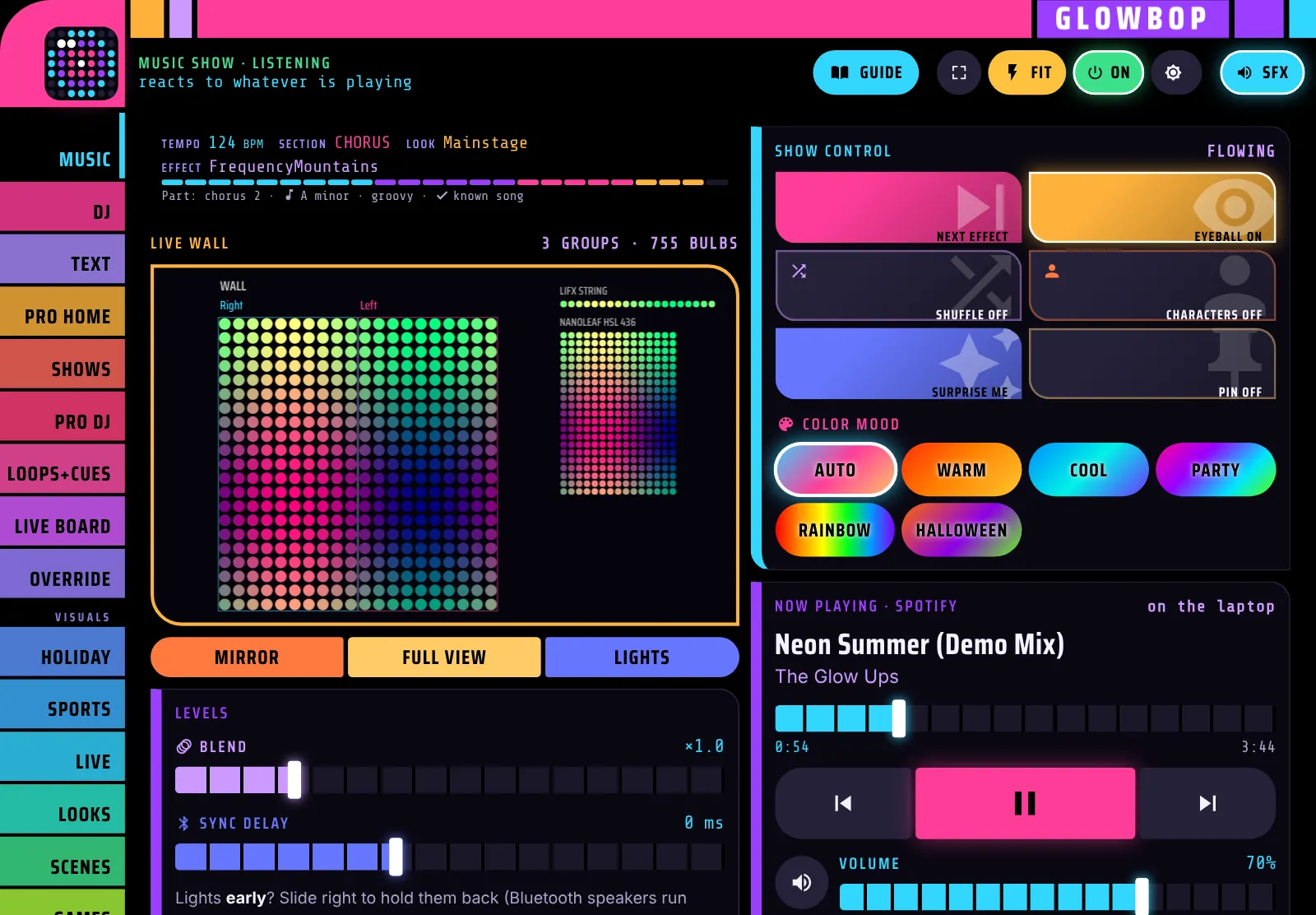
The GlowBop console is the same on a phone, an iPad and the laptop. Once you know the four parts below, you know the whole app.
The side rail
The colored keys down the left side are the sections. Tap one and its controls slide in. The white edge shows where you are. The rail comes in four groups, each with a small label above it.
The home screen and playing the lights by hand.
MUSIC
Now Playing with the light style for the song (Auto, Epic, Dance, Chill or Jazz), Show control (power, next effect, shuffle, surprise me, the Eyeball switch) and Levels: pace, sparkles, brightness, blend and sync.
DJ
Build & drop, 13 hit pads, keys to skip a look or an effect, tap tempo, cue the next look, crowd lines and your DJ controller.
Everyday looks and shows, the most used first.
LOOKS
All the looks, Feature an effect, and Transitions.
SCENES
The Fireplace at the top, then Quick scenes, Screen mirror and Describe a scene in your own words.
LIVE
11 live feeds: countdown, weather, storm watch, overhead, earthquakes, aurora, launches, moon & sun, globe, volcanoes and wildfires.
SPORTS
Game Day, Live Fan in 44 leagues with the Game Center, F1, golf, racing, tennis and UFC boards, and the countdown clock.
TEXT
Messages and your logo on top of the show, or a logo slideshow.
HOLIDAY
The holidays of your country and the mini-movies. It moves up next to LOOKS when a holiday is close.
GAMES
Eight self-playing arcade games and the Arcade marathon.
The Pro DJ tools. On Home DJ this group is a single gold PRO key with a tour of what Pro adds.
LOOPS & CUESPro DJ
Autoloops, your Scenes and the Tempo toolbox. A switch at the top opens the Cue list with its big GO. More
SHOWSPro DJ
Song Shows: a timeline for each song, with Auto-draft. More
LIVE BOARDPro DJ
The fader board, colour palettes, zone faders, the hit pads and the Pad Recorder. More
OVERRIDEPro DJ
Override target (a zone), eight override keys and Interlude · Ambient. More
Your lights and the app itself.
LIGHTS
Everything about the physical lights: Your lights (find and add), Light groups, Layout & shape, Draw your layout, Line up my curtains and Map with camera.
SETUP
License, the remote QR code, Controllers & Sync, a restart key if something isn't working, screen, console sounds, text size, song lookup, and help and feedback.
TOOLS
Every tool from every page in one grid. More
SHUTDOWN
The last key on the rail. Pick Lights off or Lights keep going, and GlowBop shuts down on the laptop. On a phone or iPad the screen then shows Start GlowBop for next time.
Power and Brightness, on every page
Two quick keys sit at the top of every page: Power turns the lights off and on, and Brightness opens a slider with 25, 50, 75 and 100 percent presets. No need to go back to MUSIC.
✨ GlowBop Vibes: every room, your way
Every room gets its own vibe. Party show in the living room, a slow ocean glow in the bedroom, a calm sunset on the pool deck, all at the same time. You run the whole house from one page that is easy to use, and it comes with every plan.
Name your rooms (bedroom, living room, pool deck) and each one gets its own power, brightness and a choice of SHOW or CALM.
- SHOW runs the full music show.
- CALM plays a slow flowing scene that ignores the beat: Sunset, Ocean, Candle, Aurora or Warm.
- Each room runs on its own. Keep the pool deck on a calm sunset while the living room runs the party show.
Open it: on the console, tap the new VIBES key on the rail. On your phone, open your GlowBop phone link and add /vibes to the end. On the iPad you see every room side by side.
Add a room: type a name, pick an emoji, and tick the lights in that room.
60 Classics: tap the Classics key on any room for the color fades, chases, twinkles, fireplaces and holiday scenes you know from light strip apps. Four tabs (Strip, Moods, Nature, Holidays), one tap to play, at any speed. Save your favorites to My vibes.
Random: tap Random on any room and it moves to a new vibe by itself every 3 minutes (or pick 1, 5, 10 or 30), with a soft fade and never the same one twice in a row. Tap Pick my own to bring back the room's old vibe. On a Bluetooth curtain, Random only changes the colors.
The live wall
The box with the amber frame shows exactly what your lights are showing right now, bulb by bulb. With light groups, each group shows side by side and you can tap one to control just that group.
- Full view fills the whole screen with the wall. Tap Close to come back.
- Mirror jumps to screen mirroring. Lights jumps to the LIGHTS tab.
- When you're in another section on a phone, the wall shrinks so the controls have room.
The mode bar
The bar under the wall always says what's in charge of your lights, in that mode's color: Music show · listening, a pinned look, a holiday, the fireplace, a scene, a live feed or a storm alert. When something has taken over, a pink ♫ Back to music button appears next to it. One tap turns off whatever is on and the music show comes back, from any section. If a Song Show is playing, it sits out the rest of that play and comes back next time the song plays.
With Pro DJ, small chips can join the mode bar on every screen (they jump to the LIVE BOARD or OVERRIDE tab): ⛔ OVERRIDE ACTIVE while an override key is on (tap to release them all), 🔁 LOOPS while loops play (tap to stop them all) and 🎚️ FADERS when a fader is away from normal (tap to open the board). During an interlude the button reads 🎵 Back to the show.
The readouts
Under the mode bar: the tempo in BPM, the song section (intro, build, drop, break...), a level meter, the current look and effect, plus extras like the key and mood when GlowBop knows the song.
Console sound styles
Every tap makes a tiny sound, and you pick its voice in SETUP → Console sounds. Twelve styles, all original sounds made for GlowBop: Console, Computer, Arcade, Bubble, Galaxy Rebel, Wasteland Terminal, Synthwave, Magic, Spooky, Reactor Lab, Deep Sea Deco and Test Chamber. Tap one to hear it. Each phone or iPad remembers its own.
🧰 The tools bar
Boxes you set once and forget are tools: an icon on the tools bar on the right edge (along the bottom on an iPhone). Tap one and it opens as a card over the page.
- Move it by its top bar and resize it from the corner.
- 🔒 Lock it so it can't be bumped mid-show.
- ⤢ make it bigger, 📌 put it back on the page as a normal box, ➖ send it back to the bar.
- Make your own tools: long-press a box's title and drag it onto the tools bar. Long-press a tool and drag it onto the page to make it a box again.
- TOOLS on the rail shows every tool from every page in one grid.
Each page remembers its tools and where its cards were, separately on your phone and on bigger screens.
🌗 Glow or Studio
The Look key next to the GlowBop logo switches the whole app between Glow (full-colour keys) and Studio (dark keys outlined in their colour that light up only when they're on). In Studio the rail lights only the page you're on and the top bar turns to lines. It's also in SETUP → Screen.
Screen and help
- SFX at the top turns the console's sounds on or off.
- Screen stays on: after your first tap, your phone or iPad won't drop to the lock screen while GlowBop is open. Turn it off in SETUP → Screen to save battery.
- Text size: SETUP → Text size makes the words bigger or smaller. Each phone or iPad remembers its own.
- Something not working? SETUP has a 🔄 Restart GlowBop key that restarts the laptop app from your phone in about 10 seconds.
- Can't reach the laptop? If your phone loses the laptop (wrong Wi-Fi, laptop asleep, GlowBop closed), a friendly "taking a breather" screen shows what to check and reconnects by itself the moment the laptop is back.
- Help & feedback at the bottom sends us a bug report or a feature idea straight from the app.