Why do my smart lights keep going offline? Wi-Fi fixes that work
The short answer
Most smart lights that keep going offline have a Wi-Fi problem, not a broken light: they only join 2.4 GHz, they sit far from the router, or the 2.4 GHz channel is crowded. Set each light up in its own app first, keep it on your main Wi-Fi (not the guest network), move the controller closer to the router, and cable your speaker instead of using Bluetooth. GlowBop adds a Check my lights button that tells you in plain words what is wrong.
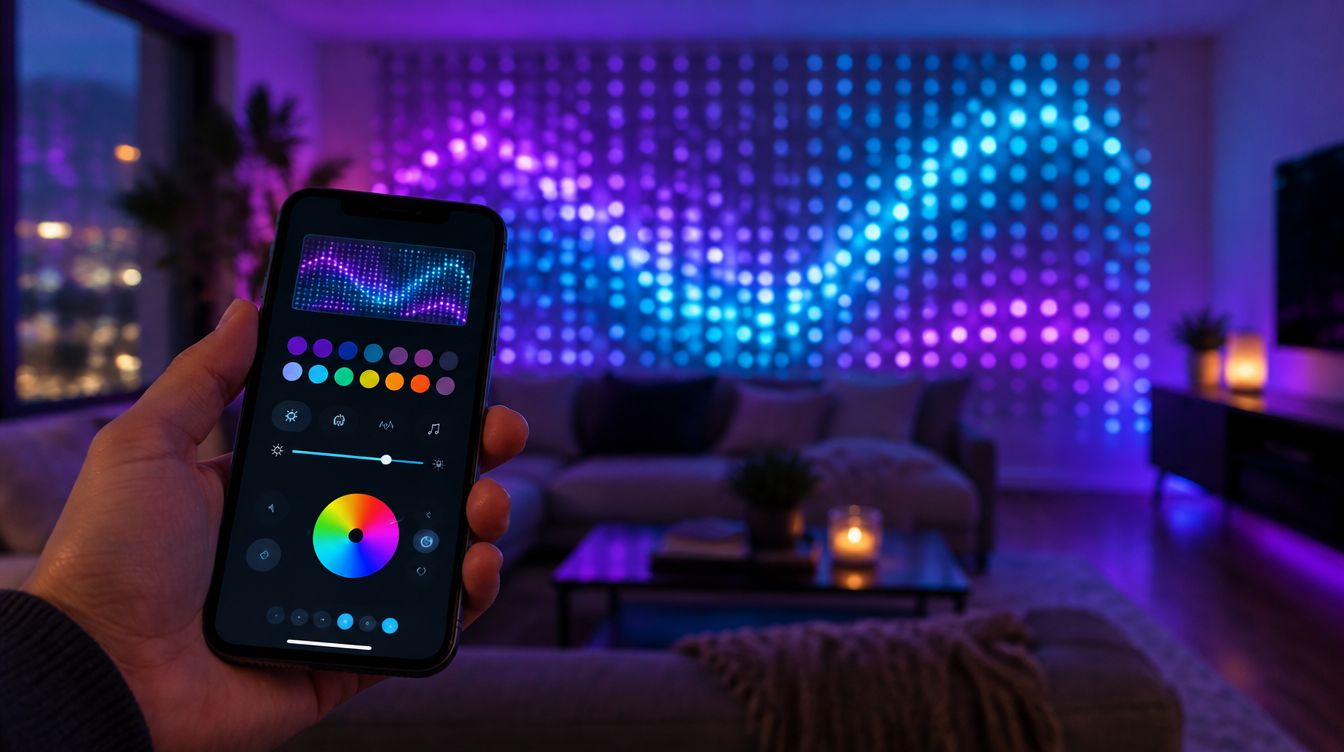
Why do my smart lights keep going offline?
When a light drops off, it is easy to blame the light. Most of the time it is the Wi-Fi around it. Smart lights have small radios, they often live outside or behind a TV, and they talk on the busiest band in your house. Here are the fixes that help most, in the order I would try them. None of them need a special app.
Why won't my lights connect at setup?
- Use 2.4 GHz. Many smart lights only join 2.4 GHz Wi-Fi. Twinkly's router tips say so, for example. If your router mixes 2.4 and 5 GHz under one name, check its settings for a way to split them or turn on a 2.4 GHz network for smart devices.
- Mesh routers. Mesh systems are great for phones but can confuse some lights during setup. Stand near the main unit when you set the light up, and check your mesh app for a smart home or 2.4 GHz option.
- No guest network. Guest networks often block devices from seeing each other. Put the lights, your computer and your phone on your main Wi-Fi.
- Turn off the VPN on your phone. A VPN can stop your phone from seeing devices on your home network.
- Set it up in its own app first. Get the light working in the Twinkly, Nanoleaf or LIFX app before anything else. If it does not work there, nothing else will see it either.
Why do my lights drop off after they were working?
- Line of sight to the router. The controller box is the part that talks to Wi-Fi, not the bulbs. Move the box (or the router) so there are fewer walls, doors and appliances between them. An extender near the lights helps a lot.
- Signal strength. If your light's app or your router shows signal strength, look at it. A weak signal leads to missed commands and lights that freeze mid show.
- A crowded channel. If several lights drop at the same moment, the router is the likely cause. In your router settings, try setting the 2.4 GHz channel by hand to 1, 6 or 11, with a 20 MHz channel width.
- Bluetooth speakers. Bluetooth and 2.4 GHz Wi-Fi share the same air. If your computer plays music over a Bluetooth speaker, the lights on that same computer can slow down. Cable the speaker if you can.
- Restart in the right order. Unplug the light for 10 seconds, plug it back in, then look for it again.
How GlowBop handles it
I learned most of the list above the hard way, on my own wall of Twinkly curtains with a Nanoleaf string and a LIFX string next to it. So GlowBop tries to do the detective work for you.
Check my lights
On the LIGHTS page, tap Check my lights. In about five seconds GlowBop asks every light how its Wi-Fi is doing and tells you, in plain words, what is wrong and how to fix it. Most fixes are one more tap. It knows who to blame: lights dropping out together point at the router, one light alone means move it closer or add an extender. It names the light, the brand and the reason.
Light health
Every light gets a health score, shown as five little bars after its name on the live wall, plus a score for the whole setup. The Wi-Fi test and the neighbour scan show how well each light keeps up and which channels your neighbours crowd. If your computer is playing its sound over Bluetooth, GlowBop says so, so you know a cable will help. If one light struggles, GlowBop gives it a breather by itself so the rest of the wall keeps going.
It runs on your computer
GlowBop runs on your Windows PC at home, on the same Wi-Fi as your lights. Your phone is the remote: scan the QR code from the laptop and the full console opens in your phone's browser, nothing to install. Away from home, at a tailgate or a pool party, connect the laptop to your phone's hotspot. The setup steps are in getting started.
If your phone cannot reach the laptop, you get a friendly screen that says Your lights are taking a breather, with the three things to check: the same Wi-Fi, the laptop awake, and GlowBop open. It reconnects by itself the moment the laptop answers.
A light on weak Wi-Fi
Got one light that lives at the edge of your Wi-Fi? You can set any Twinkly, LIFX, Nanoleaf or WLED light to follow its own effects, which change with your song. And with Twinkly, tap Save the last minute and your Twinklys keep the show going with the laptop closed. More in the lights on their own section.
Still stuck? The troubleshooting guide covers phones that will not connect, lights GlowBop cannot find, Nanoleaf pairing and Bluetooth lights. Which brands work today is on supported lights.
Try it
Run Check my lights on a pretend wall in the live demo, then start the 7-day free trial on the pricing page. Want your Wi-Fi lights at a game? See game day lights that react when your team scores.
Questions people ask
Why won't my smart lights connect to my Wi-Fi at setup?
Many smart lights only join 2.4 GHz Wi-Fi, and some routers hide that band behind one combined network name. Check your light's help pages, use your main network instead of the guest network, and turn off any VPN on the phone you use for setup.
Why do my lights keep dropping off Wi-Fi?
Usually the light is too far from the router, a wall is in the way, or the 2.4 GHz channel is crowded by neighbours. If several lights drop at the same moment, the router is the likely cause, not the lights.
Can a Bluetooth speaker make my Wi-Fi lights worse?
Yes. Bluetooth and 2.4 GHz Wi-Fi share the same radio space, so a computer playing over Bluetooth can slow its Wi-Fi lights down. A cable to the speaker fixes it.
Do my phone and lights need to be on the same Wi-Fi as GlowBop?
Yes. The lights, the computer running GlowBop and your phone all join the same network. Away from home, connect the laptop to your phone's hotspot instead.
What does Your lights are taking a breather mean in GlowBop?
It means your phone cannot reach the GlowBop laptop right now. Check the same Wi-Fi, that the laptop is awake and that GlowBop is open; it reconnects by itself as soon as the laptop answers.
Should I set my lights up in their own app first?
Yes. Get each light working in its maker's app first, so you know it is on Wi-Fi and healthy. Then GlowBop can find it and take over.